OtterHoops for schools
The athletic office, the bench and the book.
One school, every basketball team. Run tryouts and cuts, collect the paperwork, give athletes their own login with parents reading along, keep the book at every game, honor your seniors and close the season with a record that stays.
$299 a year · 14-day free trial · no auto-renewal · families pay nothing
One school, many teams
Varsity, JV and the athletic office, in one place.
Your school is one account with a basketball program inside it: Boys Varsity, Boys JV, girls' teams, up to six teams with unlimited athletes and coaches. Add another sport to the same school year and it lives beside basketball, for $199.
The right seat for everyone
The athletic director runs the program; an assistant AD shares the work without the billing; an athletic trainer marks clearances and injuries; coaches see their own teams.
Coaches invited to a team
Invite a coach as Head or Assistant coach of a team and they're seated when they accept, with the team's roster, schedule, chat and Scorebook.
One schedule, home and away
Every team's games and practices on one calendar, against outside schools that aren't on OtterHoops, on your own gyms or theirs. Families add it to Apple or Google Calendar.
A public page for the school
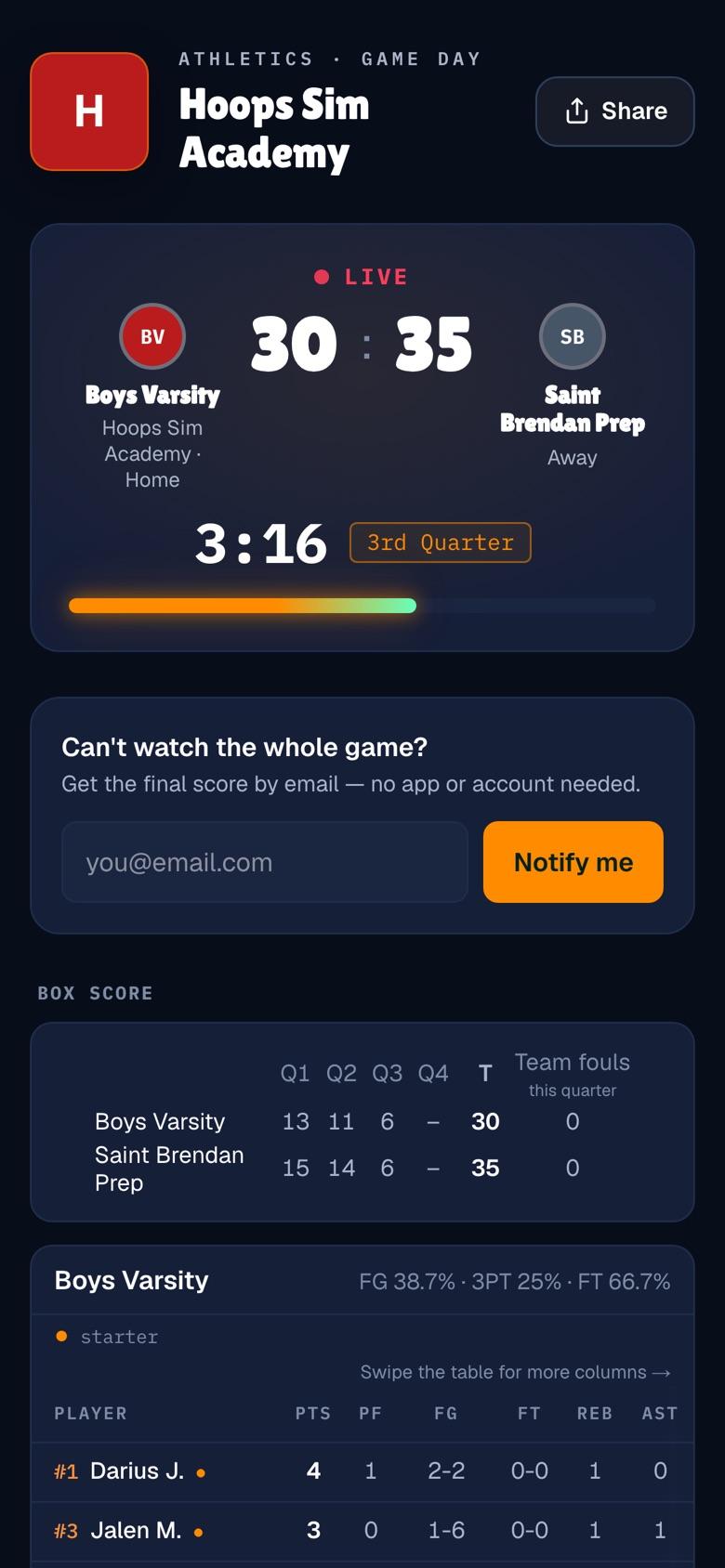
Schedule, results and each team's season record on the school's public page, with live game pages families can share.
Tryouts & cuts
From a tryout invite to a roster, without a spreadsheet.
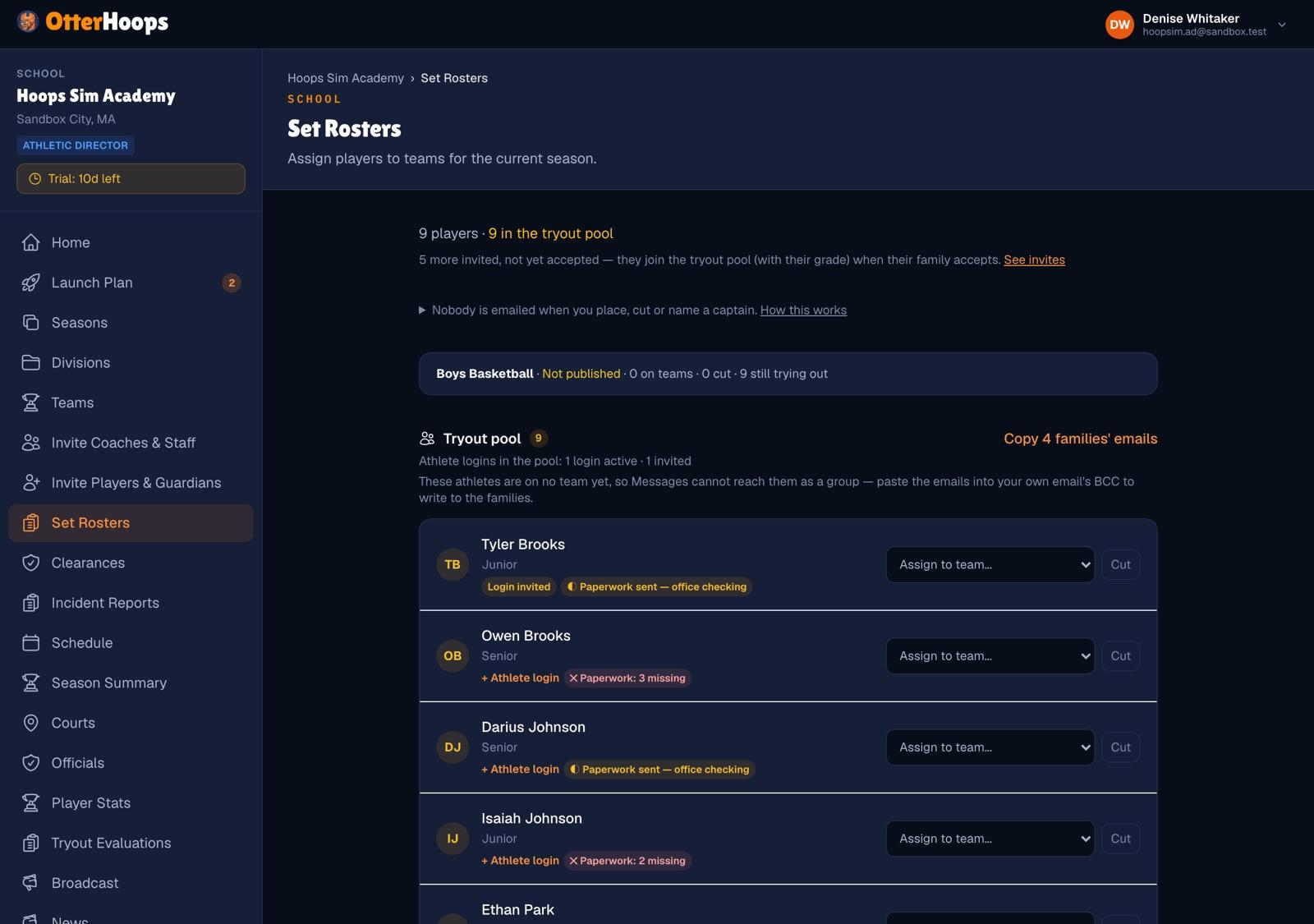
Send each family a tryout invite. When they accept, the athlete lands in the tryout pool with their grade. Set Rosters puts them on Varsity or JV, names captains and cuts, and nobody is emailed when you place, cut or name a captain, so the decision is yours to tell.
The tryout pool at a glance
Who accepted, who's still invited, each athlete's login and paperwork status, and the families' emails to copy for a note.
Tryout sessions and evaluations
Post tryout sessions on the schedule and score them on Tryout Evaluations.
Cuts that read kindly
A cut family sees “Not selected this season” on their own page. Reinstate or withdraw from the cut list.
Captains in one tap
Make an athlete captain from Set Rosters or the team's roster; captains get Captains' Chat.
Clearances & family paperwork
Families send it from their phone. You see who's ready.
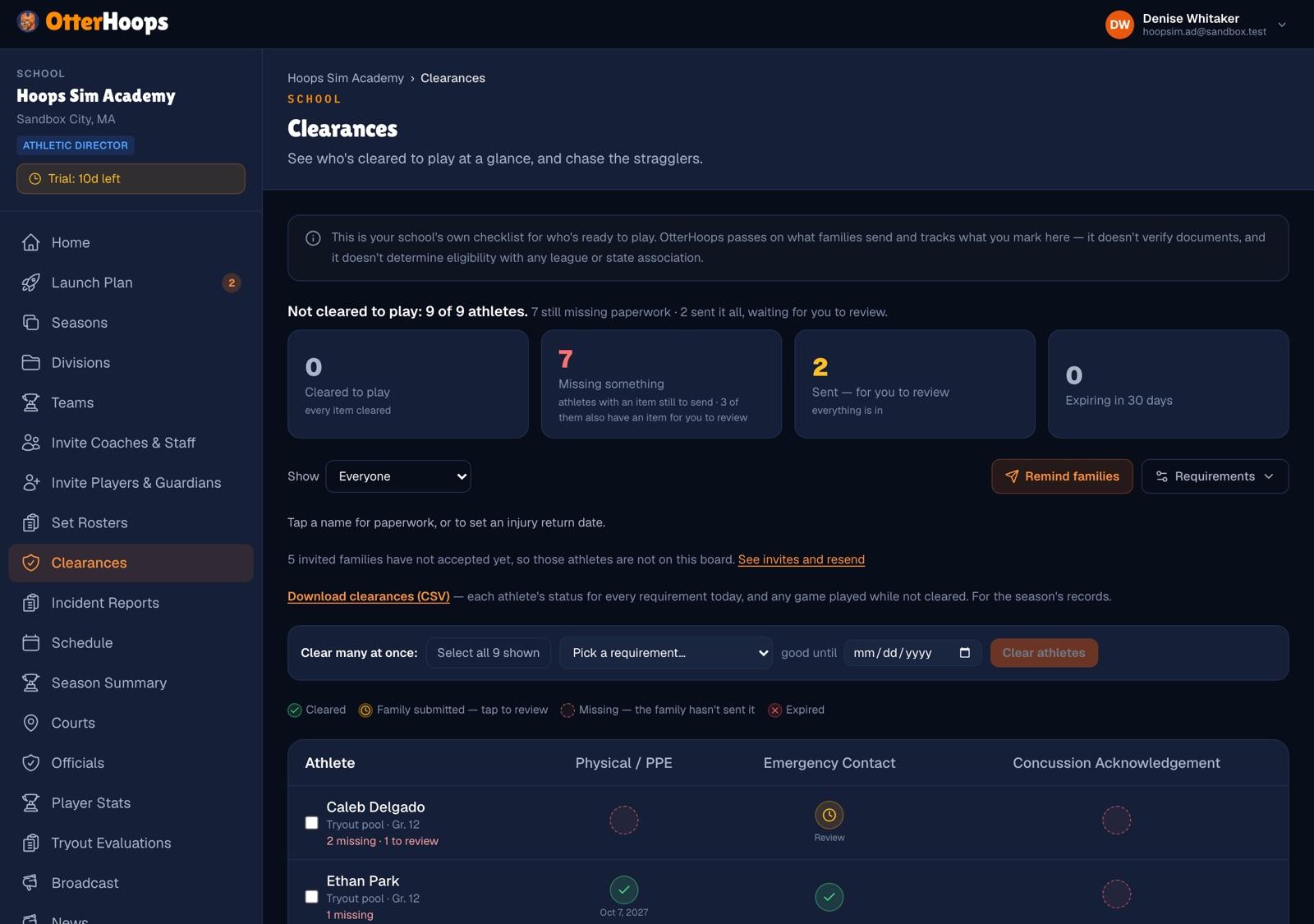
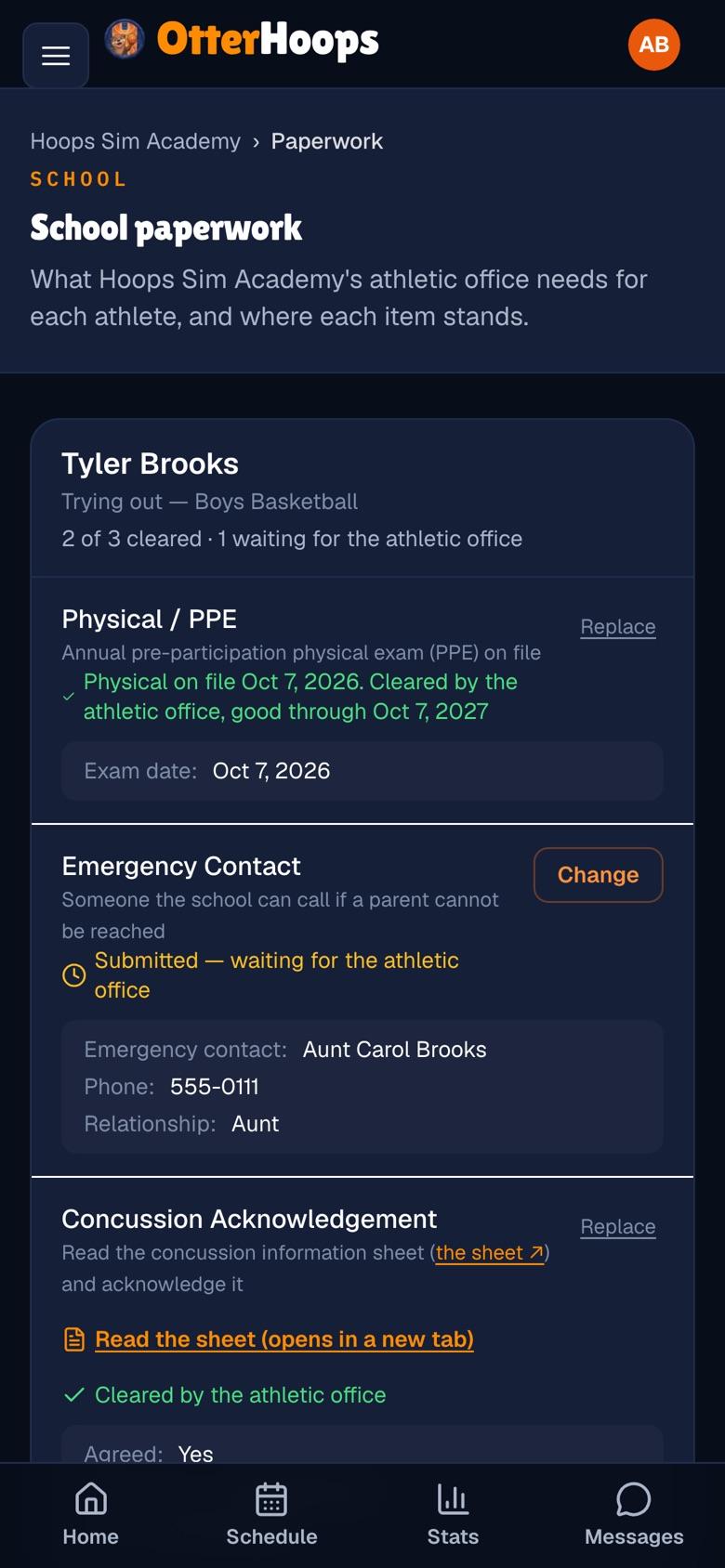
Set your own checklist (physical, emergency contact, concussion acknowledgement) and families send each item online: the exam date and a file, a contact and a phone number, a typed acknowledgement. The Clearances board shows who is cleared, missing something or waiting for you to review.
Track, not certify
OtterHoops passes on what families send and tracks what your office marks. It doesn't verify documents or decide eligibility; the athletic office does.
Chase the stragglers
Remind families previews exactly who is asked for what, then sends one email per family, naming only the items still missing or expiring in 30 days.
Out — injured, with a return date
The athletic trainer marks an athlete out from a day and clears them to return on a day. Coaches, the bench sheet and the Scorebook show it; the athlete's parents are told.
On the bench sheet, at the game
Each team's bench sheet carries the emergency contact the family sent. A not-cleared athlete is flagged in the Scorebook, and the school can switch on “not cleared = cannot play”, with only the AD able to override.
Athlete logins & transparent messaging
Athletes get their own login. Parents read along.
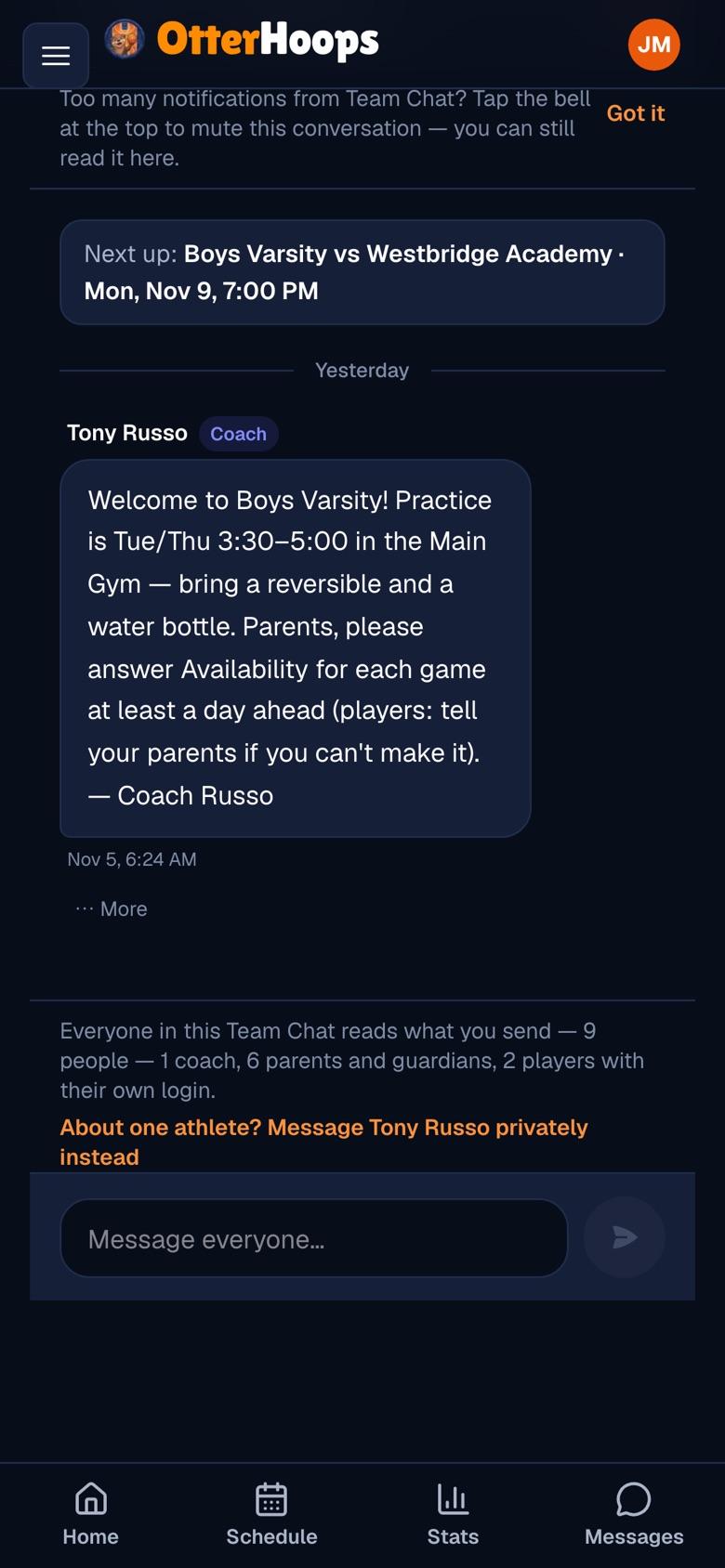
Invite an athlete (13 or older) to their own account for schedules, stats and Team Messages; their parents are emailed when the invite goes out and when it's accepted. There are no private corners: the transparency is built into who can read each conversation, and everyone is told so in plain words.
What athletes are told
Every parent or guardian linked to you can read every conversation you're part of at school — Team Chat, Captains' Chat and direct messages. The athletic director and the Assistant AD can read all of them. That stays true after you turn 18.
What coaches are told
Who reads athletes' messages: each athlete's parents and guardians read every conversation that athlete is part of — Team Chat, Captains' Chat and direct messages. The athletic director and the Assistant AD can read and reply in any of them. Athletes are told this when they're invited.
Captains' Chat
Who reads it: the captains, this team's coaches, every captain's parents and guardians, and the athletic director and the Assistant AD — all of them can read along and post. A new captain joins automatically; someone who stops being captain loses access.
Team Chat for the whole team
Coaches, families and athletes with a login in one chat, with a line that says how many people read what you send.
Captains' Chat
A room for the captains and coaches. A captain can open it themselves; the coaches and the AD are told who did.
The Scorebook at every game
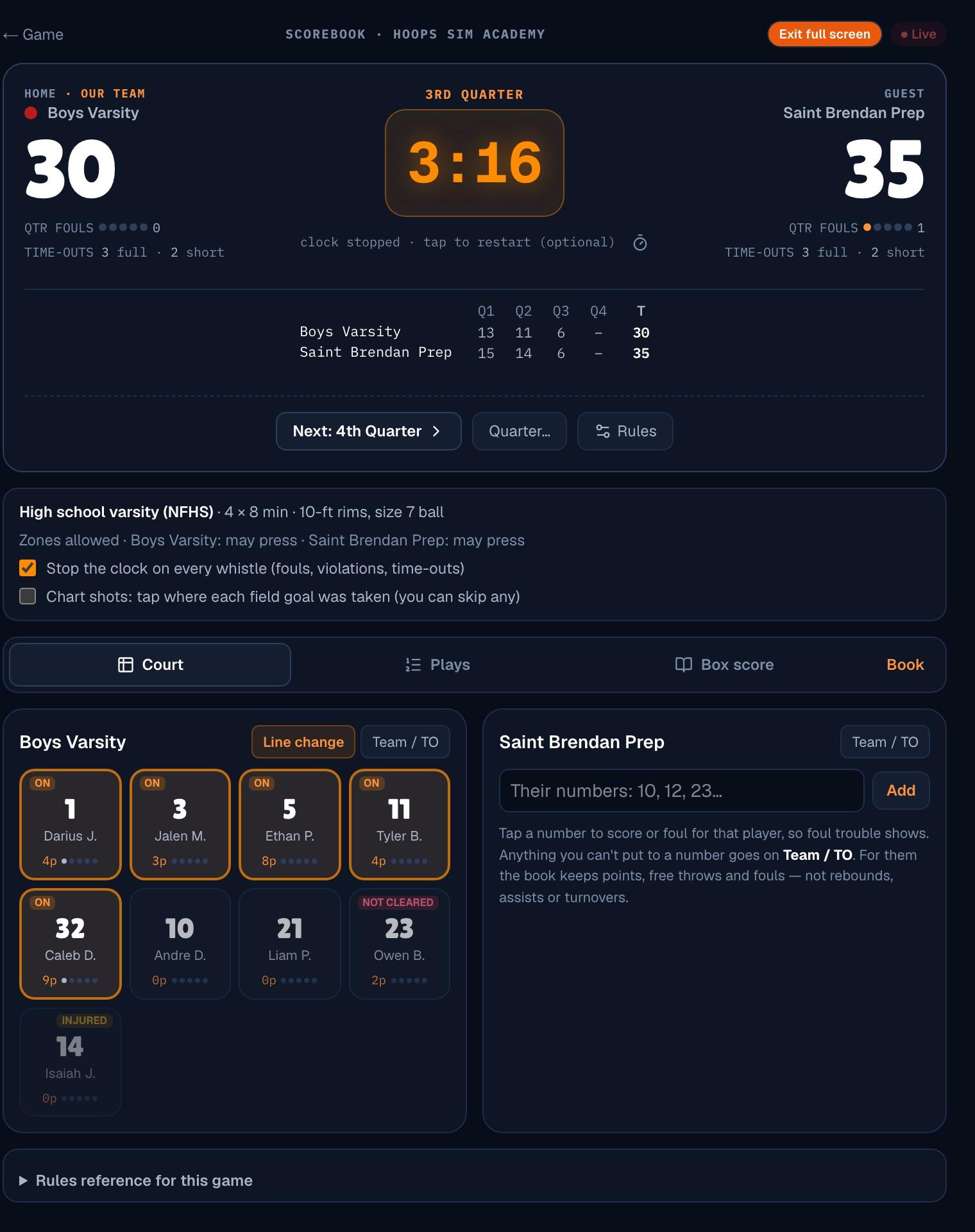
Keep the book at the table. Families follow it live.
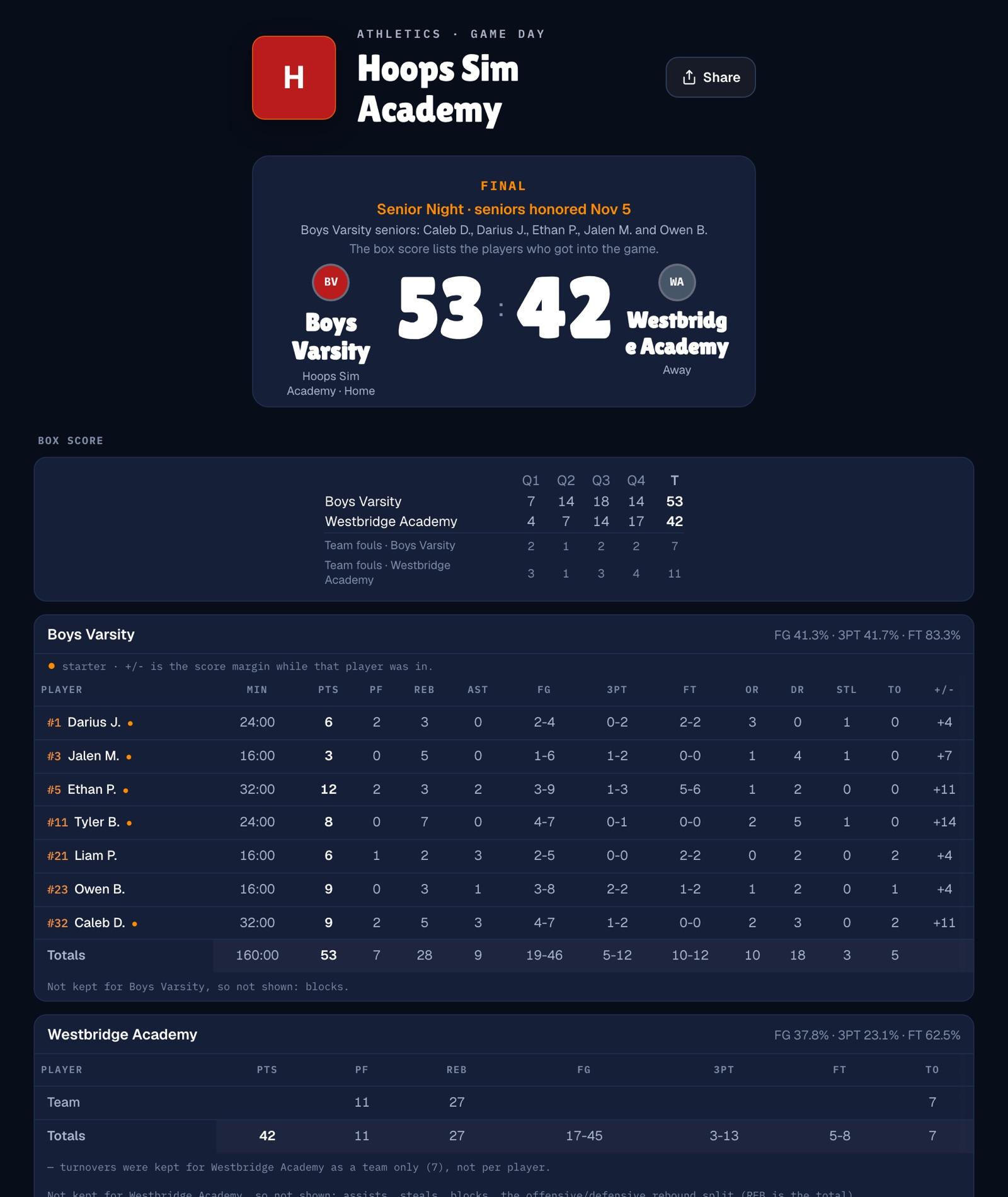
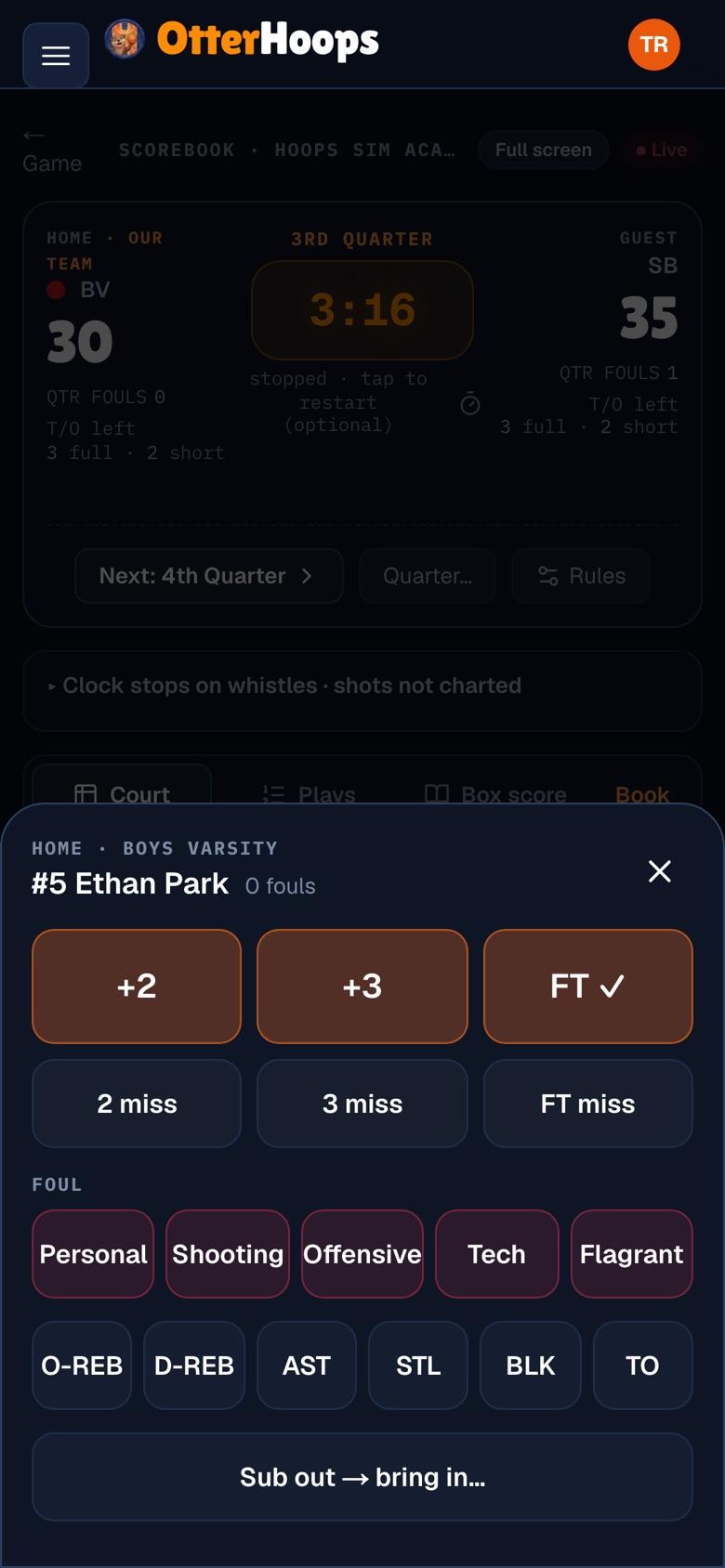
The same tap-first Scorebook OtterHoops leagues use: every basket and foul, quarter fouls and the bonus, time-outs, substitutions and minutes, and a live box score on the game's public page. The other school doesn't need OtterHoops; type their numbers and keep their side too.
A parent can keep the book
Name a staff member or a team parent as the game's scorekeeper; they get the Scorebook for that game, on that day only.
Signed off by the coach
After the Final the coach signs the book and families see the box score as official. Season stats and leaders add up on their own.
Post the result to the team
One button after the Final opens Team Chat with the result line in the box. Nothing is posted until you press Send.
Every result on the record
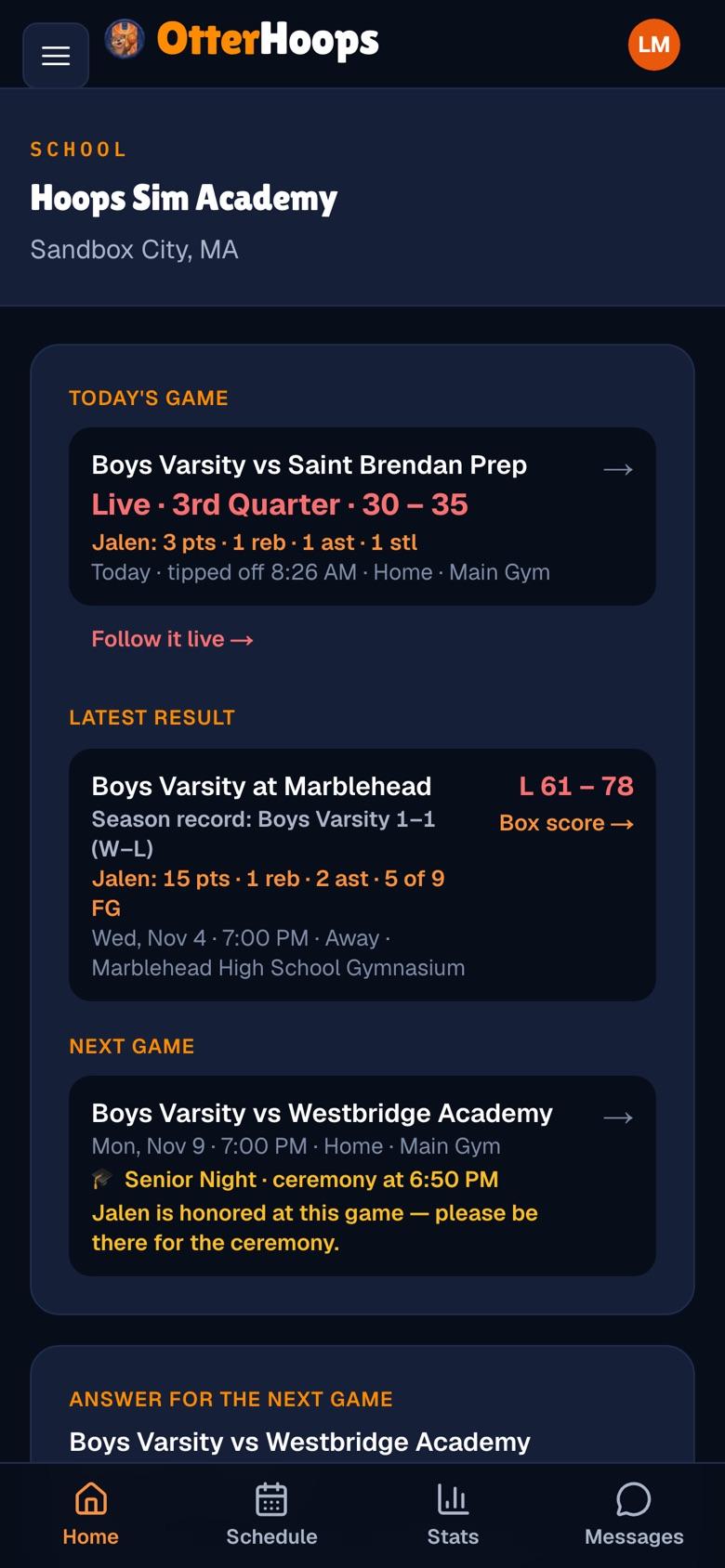
Results and box scores on the school's public pages and each family's home, with Home and Away and the season record.
Senior Night
Honor your seniors, and make sure their families know.
Mark a home game as Senior Night with the ceremony time and a meeting point. The seniors' families and the seniors themselves get one email, the ceremony shows on their home and on the game's public page, and each senior's parent can answer whether they're coming and how many guests, so the office knows how many to expect.
Who's honored, everywhere
The seniors are listed on the public game page and in the Scorebook, which notes when every senior got on the floor.
After the game
The game page offers a Senior Night recap for your school's News, with the names ready to use.
Closing the season
Finish the season. Keep the record.
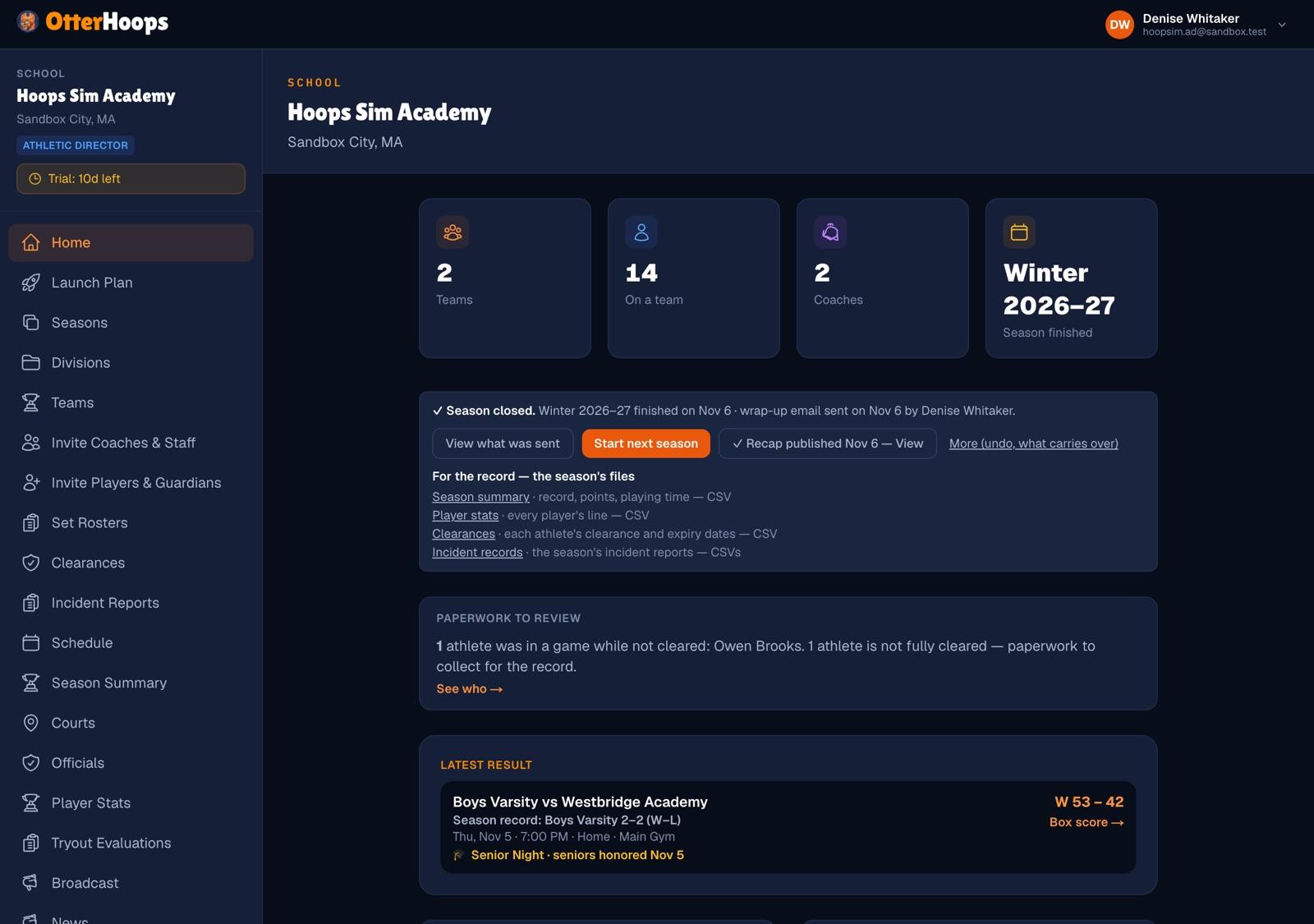
When the last game is played, the AD finishes the season: results lock, team chats become read-only and every message, box score and result stays. Then send one wrap-up email to families and athletes with each team's record and your own note.
The wrap-up email
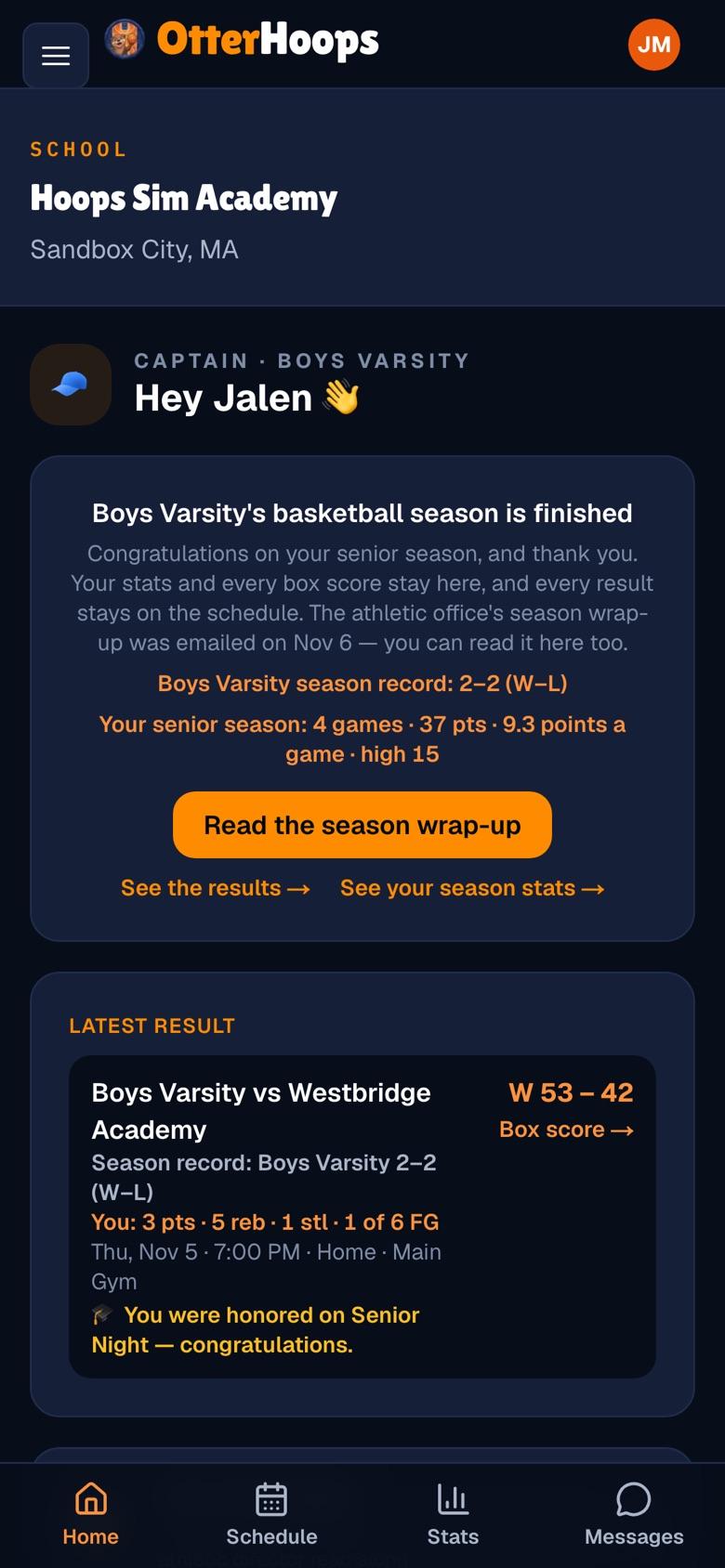
Previewed first, sent once: each team's record and the AD's note to every family and every athlete with a login. Athletes can read it on their home, too.
A recap for News
Start a season recap post for the school's News, filled in from the season's results, as a draft you edit.
The season summary
Each team's games, record, points and playing-time spread, for the AD and assistant AD; a head coach reads their own team's line.
The season's files
Season summary, player stats, clearances and incident records as CSV files for the school's own records.
Pricing
One price for the school year. Families pay nothing.
- $199 for each additional sport in the same school year, paid together
- 14-day free trial, and no auto-renewal: a school year is 12 months, renewed only when you choose
- Up to 6 teams per sport, unlimited athletes and coaches
- Coaches, families and athletes never pay a fee